

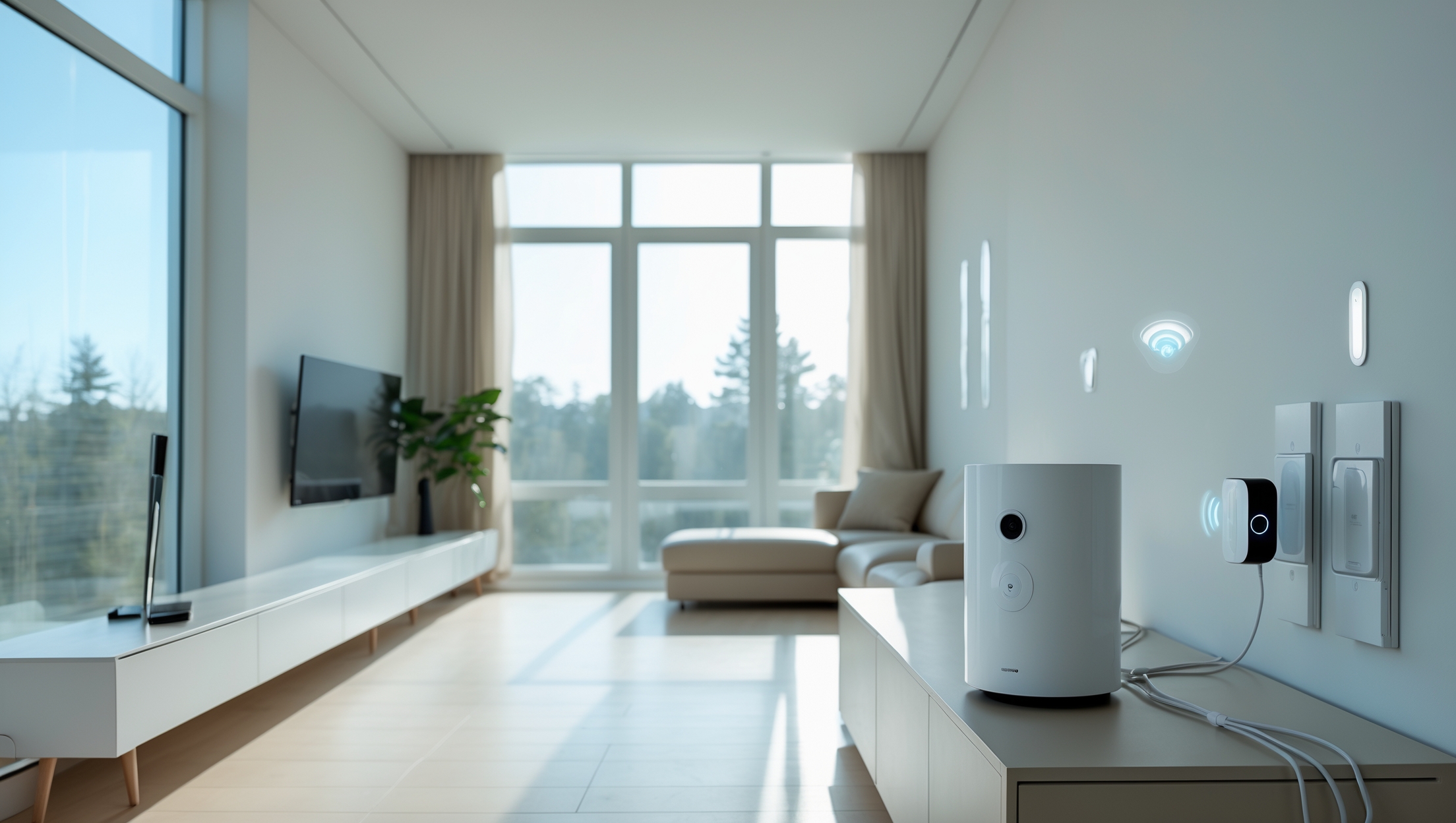
Introduction: The Rise of DIY Smart Home Security
Smart home security systems have rapidly evolved from expensive, professionally installed setups to affordable, intuitive solutions that nearly any homeowner can install themselves. With wireless cameras, door and window sensors, motion detectors, and easy-to-use mobile apps, securing your home is more accessible than ever. However, the appeal of a DIY approach can sometimes obscure the technical nuances and planning required to get it right. Homeowners often make costly or time-consuming mistakes during installation, risking system malfunctions, false alarms, or even compromised security. In this comprehensive guide, we’ll uncover the most common beginner mistakes when installing a DIY smart home security system—along with clear, practical tips to help you avoid them. Whether you’re new to smart home tech or simply want to ensure your setup is secure and reliable, this post will empower you to approach your project with confidence and foresight.
Understanding the Basics: What Makes a Smart Home Security System?
Before diving into pitfalls, it’s essential to understand the components and ecosystem of a typical DIY smart home security system. Most kits include a central hub or base station, a selection of sensors (door/window, motion, glass break), one or more cameras, and a mobile app for monitoring and control. Systems can be expanded with extra sensors, sirens, smart locks, or integration with voice assistants like Alexa or Google Assistant. Wireless connectivity, whether Wi-Fi, Zigbee, or Z-Wave, is standard, making placement flexible but also raising unique challenges.
- Hub or Base Station: The system’s brain, connects all devices.
- Sensors: Detect unauthorized entry or movement.
- Smart Cameras: Capture and stream video, sometimes with two-way audio.
- Mobile App: Allows remote monitoring, configuration, and alerts.
- Optional Add-ons: Smart locks, garage door controllers, glass break sensors, and sirens.
Common DIY Installation Mistakes (and How to Avoid Them)
1. Skipping the Planning Stage
One of the most frequent mistakes is diving straight into installation without a clear plan. Homeowners may rush to mount devices where they “look best” or where outlets are convenient, rather than where security coverage is optimal.
- Tip: Start with a floor plan sketch. Mark entry points (doors, windows), valuables, and blind spots. Plan sensor and camera placement for maximum coverage and minimal overlap.
2. Overlooking Wi-Fi Network Limitations
Many DIY smart security devices rely on your home Wi-Fi. Placing cameras or sensors at the edge of your network’s range can lead to unreliable connections, delayed alerts, or video feed dropouts.
- Tip: Test Wi-Fi strength at each intended device location using your phone. If the signal is weak, consider a mesh Wi-Fi system or strategically placed extenders before installation.
3. Poor Sensor Placement
Motion detectors, door/window sensors, and glass break sensors must be placed strategically. Mounting them too high, too low, or on unsuitable surfaces can lead to missed events or false alarms.
- Tip: Follow manufacturer height and orientation guidelines. Test each sensor’s detection area with real-world movement before finalizing placement.
4. Camera Placement Blunders
Improperly positioned cameras may fail to capture important activity or be vulnerable to tampering. Placing outdoor cameras without considering sun glare, weather exposure, or privacy laws can also create issues.
- Tip: Mount cameras 8–10 feet high for broad coverage and tamper resistance. Avoid aiming directly at light sources. For outdoor cameras, ensure weatherproofing and check your local regulations regarding video recording of public areas.
5. Ignoring Power and Battery Needs
Wireless devices often run on batteries, but some require outlets. Failing to plan for power can lead to inconvenient installation spots or frequent battery changes.
- Tip: Check each device’s power requirements. For battery-powered sensors, keep spare batteries on hand and set reminders for routine checks. For wired devices, plan cable runs or use discreet cable management solutions.
6. Disregarding Firmware and App Updates
Outdated firmware can leave your system vulnerable to hacking, bugs, or compatibility problems. Many users neglect initial updates during setup.
- Tip: As soon as devices are online, check for firmware and app updates. Enable automatic updates if available, and periodically check for new releases.
7. Weak Account Security and Password Practices
Many first-time installers stick with default passwords or create weak credentials, leaving their system open to unauthorized access.
- Tip: Immediately change all default passwords. Use complex, unique passwords for accounts and enable two-factor authentication (2FA) on your security app whenever possible.
8. Neglecting Smart Home Integration Settings
Integrating with voice assistants or other smart devices can add convenience, but improperly configured integrations may create privacy or security risks.
- Tip: Limit integration permissions to only what is necessary. Regularly audit connected devices in your smart home ecosystem for potential vulnerabilities.
9. Failing to Test the System Thoroughly
It’s common to install the system and assume it’s working as intended without running comprehensive tests. This can lead to unnoticed gaps in coverage or malfunctions that only surface during an actual emergency.
- Tip: After installation, perform a complete walkthrough. Trigger each sensor, view camera feeds in real time, and verify that all alerts and notifications are received on your devices.
10. Overlooking User Access Management
Granting app access to multiple family members without managing permissions can lead to confusion or security issues, especially if devices are lost or accounts are compromised.
- Tip: Assign access levels thoughtfully. Remove access from users who no longer need it, and use guest modes or temporary codes for visitors, cleaners, or contractors.
11. Not Understanding Monitoring Options
Many DIY systems offer both self-monitoring and optional professional monitoring for a monthly fee. Failing to choose the right level for your lifestyle and risk tolerance can leave you unprotected.
- Tip: Review the differences between self- and professional monitoring. Consider professional monitoring if you travel frequently or want guaranteed emergency response.
Essential Pre-Installation Checklist
- Draw a layout of your home highlighting entry points and high-value areas.
- Test Wi-Fi coverage in all intended device locations.
- Check all device power requirements and plan accordingly.
- Read the manufacturer’s installation guidelines thoroughly.
- Update all devices and apps before final placement.
- Change default passwords and enable two-factor authentication.
- Plan integration settings for other smart devices and assistants.
- Communicate plans with household members to avoid confusion.
Step-by-Step: Installing Your DIY Smart Home Security System
Step 1: Unbox and Inventory All Components
Lay out your kit and confirm you have all parts and accessories. Check for quick start guides, screws, mounting plates, batteries, and adhesive strips.
Step 2: Set Up Your Hub or Base Station
Place the hub centrally in your home, ideally away from large metal objects or wireless interference. Connect it to power and your router if required. Follow the app instructions to create an account and pair the hub.
Step 3: Update Firmware and App
Before adding sensors or cameras, update the hub’s firmware and ensure your mobile app is current. This step prevents setup glitches and security issues.
Step 4: Add and Test Sensors
Follow in-app prompts to add door/window sensors, motion detectors, and other accessories. Temporarily affix each sensor with tape and test them by opening/closing doors and walking through rooms. Adjust positions as needed for optimal sensitivity.
Step 5: Install Cameras
Mount cameras according to your plan. For indoor cameras, ensure wide coverage of entryways or living areas. For outdoor units, use weatherproof mounts and conceal wiring when possible. Test live video streams for clarity and lag.
Step 6: Configure Alerts and Automation
Set up custom alert parameters, such as away/home modes, notification preferences, and automated routines (e.g., lights on when motion is detected). Fine-tune sensitivity to minimize false alarms.
Step 7: Integrate with Other Smart Devices (Optional)
Connect your security system to voice assistants, smart lights, or locks as desired. Carefully review and limit permissions to protect your privacy.
Step 8: Finalize Mounting and Cable Management
Once satisfied with device locations and performance, permanently mount sensors and cameras. Use adhesive strips, screws, or anchors as recommended. Conceal cables neatly with raceways or clips.
Step 9: Document System Details
Keep a written or digital record of device locations, serial numbers, Wi-Fi credentials, and emergency contacts. Store this securely for future reference.
Maintenance and Best Practices
- Test the system monthly by triggering all sensors and checking alerts.
- Replace batteries in sensors and cameras as indicated by the app or at least annually.
- Review and update user permissions regularly.
- Check for firmware/app updates quarterly.
- Keep outdoor cameras clean and free from debris or spider webs.
- Audit integrations with other smart devices for unnecessary permissions.
Safety, Privacy, and Compliance Considerations
When installing cameras, especially outdoors, be mindful of privacy laws in your state or municipality. Avoid aiming cameras at neighbor’s property or public sidewalks unless local regulations allow it. Inform household members that cameras and sensors are active. For maximum data security, use encrypted cloud storage options and never share your security credentials with untrusted parties.
Conclusion: Secure Your DIY Success
Installing a DIY smart home security system is one of the most empowering projects a homeowner can tackle. Done right, it offers peace of mind, convenience, and cost savings compared to professional installations. However, the ease of setup can be misleading—overlooking the details can leave you with blind spots, frustrating glitches, or even security vulnerabilities. By carefully planning your layout, considering network and power requirements, rigorously testing your setup, and following cybersecurity best practices, you can avoid the most common beginner mistakes and ensure your system performs when it matters most. Remember, your smart security system is only as reliable as its weakest link. Treat installation as a process, not a one-time event—keep your software updated, review your settings periodically, and educate everyone in your household. With diligence and attention to detail, you’ll enjoy a safer, smarter home for years to come. Whether you’re protecting your family, your pets, or just your favorite gadgets, a well-installed DIY system is an investment in peace of mind.
If my home Wi-Fi goes out temporarily, will most DIY smart security systems still record footage or trigger alarms, or could I miss important alerts during an outage?
Most DIY smart security systems will still trigger alarms and record footage locally if your Wi-Fi goes out, as long as they have a backup like cellular connectivity or built-in storage. However, you may not receive mobile alerts or access live footage remotely until your internet is restored.
If I want to add extra sensors or cameras later on, is it usually easy to expand a DIY system, or do some brands make it complicated to add new devices as your home security needs grow?
Most DIY smart home security systems are designed to be expandable, making it easy to add extra sensors or cameras later on. However, some brands might require you to use their app or follow specific pairing steps, while a few could have limitations on device compatibility. It’s a good idea to check your system’s manual or support resources before purchasing extra devices.
Once I’ve installed the system using the mobile app, do you have any tips for testing everything to make sure it’s actually secure and not missing any key spots?
After setup, walk around your home and trigger each sensor or camera to confirm they alert you as expected. Check all entry points—doors and windows—and areas like garages or basements. Review the app’s event logs and notifications, then ask a friend to help test from outside to spot any blind spots or missed areas.
If I want to add smart locks and garage door controllers later, is there anything during the initial setup I should prepare for to make expanding the system easier?
It’s a good idea to choose a central hub or system that’s compatible with the smart locks and garage controllers you plan to add later. Also, make sure you have a strong Wi-Fi signal near your doors and garage, and consider running extra power outlets if needed.
How important is it to stick with one brand or ecosystem for all the components, like cameras and sensors, or is mixing brands usually fine for beginners?
Sticking with one brand or ecosystem often makes setup and daily use much easier, especially for beginners, since everything is designed to work together. Mixing brands can work, but you might face compatibility issues or need extra apps and hubs, which can get confusing.
If I already have some smart home devices like Alexa, is it usually difficult to integrate a new DIY security system with them, or are there common compatibility issues to look out for?
Integrating a new DIY security system with existing devices like Alexa is often straightforward, but compatibility depends on the brands and models involved. Check if the security system specifically lists Alexa support and look for integrations through the Alexa app. Sometimes, certain features may be limited, so reviewing both product manuals and compatibility lists is a good idea.
Are there certain beginner mistakes that could actually make your home less secure than before, like installing the cameras or sensors in the wrong spots?
Yes, placing cameras or sensors in poor locations can leave key areas unprotected, making your home less secure than before. For example, missing entry points or installing cameras too high or low can create blind spots. It’s important to cover all main doors, ground-floor windows, and other vulnerable areas.
You mention that installation mistakes can lead to false alarms. Could you give an example of a common setup error that triggers this, and any quick way to test for it before finishing the install?
A common mistake is placing motion sensors near vents or windows, where drafts or direct sunlight can cause false alarms. To test for this, walk around the sensor’s area and trigger typical household conditions, like turning on air conditioning or opening a window, to see if the sensor reacts incorrectly before completing the setup.
What should I consider if I want to start with a basic kit for my small shop but might need to expand it later? Are some hubs or base stations easier to upgrade than others without replacing everything?
When choosing a basic kit, check if the system supports adding extra sensors or cameras in the future. Look for hubs that are compatible with multiple brands and offer open standards like Zigbee or Z-Wave. Some brands make it easy to upgrade without replacing the main hub, so review product expansion options before buying.
You mention the importance of the central hub—are there certain brands or hub features you recommend for someone trying to expand with add-ons like smart locks or garage door controllers over time?
Look for hubs that support multiple protocols like Zigbee, Z-Wave, and Wi-Fi, which gives you flexibility with new devices. Brands such as Samsung SmartThings and Hubitat are popular for their compatibility and easy integration with add-ons like smart locks and garage controllers.
You mentioned that beginners often overlook technical nuances during installation. What are some common mistakes people make when placing door and window sensors, and how can these affect the system’s effectiveness?
When placing door and window sensors, people sometimes install them too far apart, which can cause the system to miss open or close events. Mounting sensors on metal frames may also disrupt signals. For best results, ensure the sensor and magnet are aligned closely and test functionality after installation.
When setting up wireless sensors and cameras, are there common issues with connectivity if your Wi-Fi signal isn’t very strong in certain parts of the house?
Yes, weak Wi-Fi in parts of your house can cause wireless sensors and cameras to disconnect or lag. It’s a common issue. Consider using Wi-Fi extenders or mesh networks to boost coverage, and try to install devices within range of your main router for better reliability.
I’m curious about the mobile app part—do most systems let multiple family members access the app at once, or is there usually just one admin account for monitoring and alerts?
Most smart home security systems let you add multiple users to the mobile app, so each family member can access, monitor, and receive alerts on their own devices. Usually, there’s one main admin account with extra permissions, but others can still get notifications and control certain features.
Do most DIY smart home security kits come with enough sensors for an average-sized home, or do you usually have to buy extra sensors right from the start?
Most DIY smart home security kits include a basic set of sensors, which is often enough to cover a small apartment or a few key entry points. For an average-sized home with multiple doors and windows, you’ll likely need to purchase extra sensors to achieve full coverage from the beginning.
Can you share any tips on the best placement for motion detectors in a retail space to avoid false alarms but still catch real movement?
For a retail space, place motion detectors high on the wall, angled downwards, away from air vents, windows, and direct sunlight. Avoid aiming them at reflective surfaces or areas with frequent movement from pets or machinery. Focus coverage on entry points and main walkways for effective detection without unnecessary false alarms.
How do I know if my Wi-Fi network is strong enough to support multiple cameras and sensors before I start installing the system?
To check if your Wi-Fi is strong enough, walk around your home with your phone and test the signal strength in each spot where you plan to place cameras or sensors. If you can stream video smoothly there, your network should handle the devices. Consider upgrading your router or adding extenders if you notice weak spots.
Are there specific challenges when trying to integrate older smart home devices, like existing Zigbee sensors, into a new DIY system covered in your guide?
Yes, integrating older Zigbee sensors can be tricky. Compatibility issues often arise if your new DIY system uses a different Zigbee version or brand. You may need a compatible hub or bridge, and sometimes firmware updates are needed. Always check that your new system supports your existing devices before starting.
When you mention wireless connectivity like Wi-Fi, Zigbee, or Z-Wave, how do I know which one is best for my house? Are there compatibility or range issues I should look out for during installation?
The best wireless option depends on your home’s size and your devices. Wi-Fi offers easy setup but can get crowded. Zigbee and Z-Wave are more reliable for many devices and offer better range through mesh networking, but you need a compatible hub. Always check that your chosen devices and hub use the same protocol and consider your home’s layout for signal strength.
As a business owner, I worry about false alarms disrupting operations. Are there certain sensors from these DIY kits that tend to be more sensitive or prone to false alerts, or is it mostly about correct placement?
Some DIY sensors, like motion detectors and glass break sensors, can be more prone to false alarms, especially if placed near air vents, heating sources, or windows with heavy traffic. Careful placement and sensitivity adjustments are key. Also, avoid aiming sensors at areas with pets or frequent movement to reduce disruptions.
Is there a big difference in reliability between setting up a Wi-Fi based system versus Zigbee or Z-Wave when it comes to avoiding connection issues or false alarms?
Yes, there’s a difference. Zigbee and Z-Wave are generally more reliable for smart home security because they use dedicated mesh networks, reducing interference and connection issues common with Wi-Fi. This lowers the chances of false alarms caused by dropped signals. Wi-Fi systems can work well, but are more prone to lag or disruptions from other devices.
Is there a risk that the mobile app or base station could go down during a power outage, and are there budget-friendly backup options you recommend for small businesses?
Yes, both the mobile app and base station can lose power or connectivity during an outage, affecting your system. For small businesses, consider an uninterruptible power supply (UPS) for your base station and a mobile hotspot as a backup for your internet. Many affordable UPS options are available to keep your security system running during short outages.
If I run into false alarms after my initial install, what’s the most common cause for beginners and is it usually a sensor placement issue or something in the app settings?
False alarms after a new install are most often caused by sensor placement—like motion sensors near windows, vents, or pets moving around. Double-check that sensors are positioned correctly and not facing areas with frequent movement. App settings can contribute, but sensor placement issues are usually the main culprit for beginners.
Are there common problems people run into when trying to connect extra add-ons like smart locks or garage controllers to their existing hub, especially if they’re mixing brands or protocols?
Yes, mixing brands or protocols can cause compatibility issues, like devices not pairing correctly or features not working as expected. Sometimes, hubs support only certain standards (like Zigbee or Z-Wave), so check both the hub and device specs before buying add-ons. Firmware updates can also help resolve some connectivity problems.
I have two young kids who sometimes open doors and windows unexpectedly. Do most entry sensors work well with active families, or should I look for specific features to avoid constant false alarms?
Entry sensors can work well for active families, but to avoid constant false alarms, consider sensors with customizable alerts, adjustable sensitivity, or temporary bypass modes. Some systems also let you set schedules or notifications only for certain doors or windows, which may help manage alerts when your kids are home.
I noticed you mentioned Wi-Fi, Zigbee, and Z-Wave for wireless connectivity. Is there a big difference in reliability or range between these, and does it really matter which one I pick for a small apartment?
For a small apartment, the differences in range and reliability among Wi-Fi, Zigbee, and Z-Wave are usually minimal. All should work well in that space. Wi-Fi devices use your existing network, while Zigbee and Z-Wave create their own mesh networks, which can help reliability in larger homes. For small apartments, choose what fits your devices and is easiest to set up.
I read about the risk of false alarms with DIY setups. Are there certain sensor placements or types that tend to cause more false alarms, and what can I do to avoid them, especially with pets at home?
Motion sensors placed too low or facing areas where pets roam are a common source of false alarms. To reduce this, use pet-immune motion sensors and position them higher up or away from furniture that pets might climb on. Avoid placing sensors near air vents, windows, or heat sources, as sudden temperature changes or moving curtains can also trigger them.
You mentioned the risk of false alarms and system malfunctions—are there common mistakes with device placement or initial setup that lead to these problems, and how can I avoid them as a beginner installing my first system?
Yes, common mistakes include placing motion sensors near heat sources or windows, which can trigger false alarms, and not securing contact sensors firmly to doors or windows. During setup, always follow manufacturer placement guidelines, test each device before finalizing installation, and ensure your system is updated. Taking these steps can greatly reduce false alarms and malfunctions.
If someone is new to all this, how much time does a full DIY installation usually take, from unboxing to having everything set up and connected to the app?
For most beginners, a basic DIY smart home security system takes about 2 to 4 hours to install from unboxing to connecting everything to the app. If your system has more devices or complex features, it could take longer, but most kits are designed to be user-friendly and quick to set up.
You mentioned false alarms as a common risk—what are some practical things I can do during installation to minimize these accidental triggers?
To minimize false alarms, place motion sensors away from windows, heating vents, and areas pets frequent. Test each sensor’s sensitivity and adjust settings as needed. Make sure doors and windows are properly closed before arming your system, and regularly check batteries and device alignment for consistent performance.
What’s the biggest mistake to watch out for when adding optional devices like smart locks or glass break sensors to the base kit? Is there a limit to how much you can expand one system?
The biggest mistake is not checking compatibility—some smart locks or sensors may not work with your system’s hub or app. Also, most systems have a device limit, so check your manual or manufacturer’s site to see the maximum number of supported devices before expanding.
What are some common causes of false alarms with motion detectors during installation, and how can I avoid accidentally triggering them when my kids and pets are home?
False alarms often happen when motion detectors are placed near heat sources, moving curtains, or in areas with lots of pet or kid activity. To avoid this, mount detectors away from windows, vents, and busy play areas. Choose pet-friendly sensors, adjust sensitivity settings, and always test thoroughly while your kids and pets are present.
When setting up a DIY smart home security system, how do you decide between using Wi-Fi, Zigbee, or Z-Wave for connectivity if your house has a lot of thick walls?
If your home has thick walls, Zigbee and Z-Wave are usually better choices than Wi-Fi because they create mesh networks, allowing devices to relay signals through each other and improve coverage. Z-Wave, in particular, often has better wall penetration. Consider your existing smart home hubs and compatibility before deciding.
You mentioned Wi-Fi, Zigbee, and Z-Wave for wireless connectivity—how do I decide which one is best for my setup, especially in an older home with thick walls?
For older homes with thick walls, Z-Wave is often more reliable because it uses lower frequencies that penetrate walls better than Wi-Fi or Zigbee. Zigbee is good for devices close together, while Wi-Fi can struggle with range and interference. Consider your home’s layout and the number of devices you plan to connect.
What’s the best way to avoid false alarms from motion detectors in high-traffic areas like a shop entrance or storeroom?
To reduce false alarms from motion detectors in busy areas, position the sensors away from direct paths of movement, like pointing them at walls instead of doorways. Consider using sensors with adjustable sensitivity or pet-immune features, and regularly test them to fine-tune their settings for your specific environment.
If my Wi-Fi goes down, will most DIY smart home security systems still work for things like sensors and alarms, or do I need to look for a system with a backup protocol?
Most DIY smart home security systems rely on Wi-Fi for communication and alerts. If your Wi-Fi goes down, basic sensors and alarms may still trigger locally, but you might not get remote notifications or control. For added reliability, consider systems with cellular backup or local radio protocols.
If my home Wi-Fi network isn’t very strong in certain rooms, will that significantly impact the reliability of wireless cameras and sensors, or are there cost-effective solutions for boosting connectivity just for the security system?
Weak Wi-Fi in parts of your home can cause cameras and sensors to disconnect or lag, reducing your system’s reliability. A cost-effective solution is to use Wi-Fi range extenders or mesh Wi-Fi systems to boost coverage only where you need it, helping your security devices stay connected.
Could you explain the differences between Zigbee and Z-Wave for wireless connectivity in these systems? Are there pros or cons I should weigh before choosing one over the other?
Zigbee and Z-Wave are both popular wireless protocols for smart home security. Zigbee typically supports more devices and is faster, but can be prone to interference from Wi-Fi. Z-Wave has a longer range and is less prone to interference, but supports fewer devices. Also, check which devices and hubs are compatible with each protocol before deciding.
If I want to integrate smart locks and garage door controllers later, should I buy a specific hub now, or can most hubs add those devices down the road?
Most hubs let you add new devices later, but it’s wise to check that any hub you choose supports the smart locks and garage door controllers you might want. Look for compatibility with popular standards like Z-Wave, Zigbee, or specific brands to keep your options open.
I’m a bit confused about the wireless options mentioned, like Zigbee and Z-Wave compared to Wi-Fi. How do I know which connection type is best for my smart security system at home?
Choosing between Zigbee, Z-Wave, and Wi-Fi depends on your needs. Zigbee and Z-Wave are reliable for smart security because they create mesh networks, boosting range and stability. Wi-Fi is simpler to set up but may slow your network with many devices. Check device compatibility and consider your home’s size and existing Wi-Fi performance before deciding.
Does the type of wireless connectivity I choose, like Wi-Fi versus Zigbee or Z-Wave, affect how often I might experience connection drops or interference, especially in larger homes?
Yes, the type of wireless connectivity does matter. Wi-Fi can suffer more from interference and drops, especially in larger homes with many devices. Zigbee and Z-Wave usually offer more reliable connections over longer distances because they form mesh networks, reducing dead spots and interference.
How reliable are DIY smart home security systems compared to professionally installed ones when it comes to false alarms, especially in a small office setting?
DIY smart home security systems can be reliable, but they tend to have a higher risk of false alarms, especially if sensors aren’t installed or configured correctly. In a small office, careful placement and setup are key. Professional systems often include expert calibration, which helps reduce false alarms.
You mention wireless connectivity like Wi-Fi, Zigbee, or Z-Wave—how do I decide which one is best for a small retail store, especially if I already have some Wi-Fi network issues?
Since you already have Wi-Fi issues, it might be wise to consider Zigbee or Z-Wave, as these networks are less likely to experience interference from regular Wi-Fi devices. Zigbee is more common and has a wider range of compatible devices, but Z-Wave is also reliable. Check which protocol is better supported by your preferred security equipment.
The article mentions expanding systems with devices like smart locks or garage controllers. Are there any compatibility concerns I should be aware of when adding third-party devices to my security system?
Yes, compatibility can be an issue when adding third-party devices. Make sure any smart lock or garage controller you choose supports the same protocol as your system, like Zigbee, Z-Wave, or Wi-Fi, and check if the manufacturer lists your security hub as compatible before buying.
When setting up a DIY smart home security system, how do I know if I should go with Wi-Fi only devices or mix in Zigbee or Z-Wave components? Are there compatibility issues I should watch out for?
Choosing between Wi-Fi only devices and Zigbee or Z-Wave depends on your home’s size, Wi-Fi reliability, and the number of devices. Zigbee and Z-Wave offer better range and less Wi-Fi congestion, but require a compatible hub. Always check compatibility with your chosen hub or platform—mixing brands can sometimes cause issues.
Are there any specific mistakes that small business owners tend to make differently than homeowners when installing these DIY security kits?
Small business owners often overlook the need for broader coverage, like monitoring entry points not found in homes, or they may forget to set up different access levels for employees. They might also neglect to secure sensitive areas such as storage rooms or cash registers, which are less of a concern in most homes.
Are there any hidden costs or subscription fees for the mobile app features most kits include, or is monitoring and control usually free once the equipment is installed?
Most DIY smart home security kits include basic mobile app features like monitoring and control for free once you buy the equipment. However, advanced features such as professional monitoring, cloud video storage, or enhanced alerts often require a monthly subscription fee. It’s a good idea to check what’s included before purchasing to avoid surprises.
Does mixing devices that use both Zigbee and Z-Wave protocols in one DIY system cause setup headaches, or can the average user handle the integration with most hubs?
Mixing Zigbee and Z-Wave devices is possible, but setup can be more complex. Most modern hubs support both protocols, making integration manageable for average users, though you may need to add or configure each device type separately. Double-check your hub’s compatibility before buying devices.
For a small shop, would you recommend starting with a bundled kit or buying individual components to customize security, especially if I want to expand later?
For a small shop, starting with a bundled kit is usually easier and cost-effective. Many kits are expandable, so you can add more sensors or cameras as your needs grow. Just make sure the system you choose supports additional components and customization.
When expanding a basic DIY kit with extra sensors or smart locks, do most systems require you to stick with the same brand, or is mixing different brands possible without compatibility issues?
Most basic DIY security systems work best when you use sensors and devices from the same brand, as compatibility is usually guaranteed. Mixing brands can cause issues unless the system supports open standards like Z-Wave or Zigbee, which allow some cross-brand compatibility. Always check your system’s documentation to confirm supported devices before buying extras.
For someone wanting to add optional devices like smart locks or garage door controllers later, is it better to get a hub that supports everything upfront, or can these be added easily after the main system is in place?
It’s easier in the long run to choose a hub that supports all the devices you might want now and in the future. While you can add devices like smart locks or garage door controllers later, upgrading or switching hubs afterward can be more complicated and sometimes requires reconfiguring your system.
You mentioned that most kits include wireless sensors and cameras. Are there any common network problems or interference issues to watch out for in houses with lots of wireless devices?
Yes, having many wireless devices can sometimes cause network congestion or interference, especially if they use the same Wi-Fi frequency band. To minimize issues, try spreading devices across both 2.4GHz and 5GHz bands, keep your router firmware updated, and avoid placing sensors or cameras near microwaves or cordless phones that may disrupt signals.
You mention wireless connectivity like Wi-Fi, Zigbee, or Z-Wave for these systems. Is there a big difference in reliability or security between them for someone setting this up for the first time?
Wi-Fi is easy to set up but can be affected by network congestion and outages. Zigbee and Z-Wave usually offer more stable connections for smart devices and are less prone to interference. In terms of security, all can be safe if you use strong passwords and update firmware, but Zigbee and Z-Wave are less likely to be targeted by common Wi-Fi attacks.
For those of us living in older homes with thick walls, what’s the best way to handle wireless connectivity issues with devices like sensors and cameras? Have you found that adding more hubs or repeaters really helps?
Thick walls can definitely weaken wireless signals in older homes. Adding Wi-Fi repeaters or mesh network nodes usually helps extend coverage and reliability for your sensors and cameras. Placing hubs or repeaters midway between your router and devices, especially near problem areas, tends to give the best results.
You mention Wi-Fi, Zigbee, and Z-Wave connectivity—how do I decide which wireless option is best for a busy location where network interference could be an issue?
For busy locations with potential wireless interference, Zigbee and Z-Wave are usually more reliable than Wi-Fi because they use dedicated frequencies and form mesh networks, reducing congestion. Z-Wave is especially good at avoiding Wi-Fi interference. Check which protocol your devices support and consider the wireless environment in your home before deciding.
You mention false alarms being a risk—are there specific placement mistakes with motion detectors or door sensors that beginners commonly make?
Yes, common mistakes include placing motion detectors near heat sources, vents, or windows, which can trigger false alarms. For door sensors, improper alignment or loose mounting can cause them to misread open or closed states. Always install sensors according to manufacturer guidelines and test them after installation.
You mention that false alarms can be a problem for beginners. Are there particular mistakes during setup that most often lead to these, and how can I avoid them if I’m installing everything myself for the first time?
False alarms often happen when sensors are installed incorrectly, such as placing motion detectors near heating vents or windows where sunlight changes rapidly. Make sure door and window sensors are properly aligned and that your pets can’t trigger motion sensors. Double-check your system’s sensitivity settings and always test each device after installation to catch any issues early.
The article mentions wireless connectivity like Wi-Fi and Zigbee. For a business setting with lots of electronic equipment, are there best practices to avoid interference or connectivity issues?
In business environments with lots of electronics, it’s wise to use devices that support multiple wireless protocols like Zigbee or Z-Wave, as they often operate on less crowded frequencies than Wi-Fi. Position your security hubs and sensors away from large metal objects and sources of electromagnetic interference, and use wired connections for critical devices whenever possible.
You mentioned that most kits include a central hub and support different wireless standards like Wi-Fi, Zigbee, or Z-Wave. Is there a big difference between these wireless types in terms of reliability or security?
Yes, there are differences. Wi-Fi is widely used but can get congested, affecting reliability. Zigbee and Z-Wave are designed for smart devices, often offering more consistent connections and using less power. In terms of security, all can be secure if kept updated, but Z-Wave and Zigbee networks are generally less exposed to outside interference than Wi-Fi.
Are there any tips for integrating add-ons like smart locks or garage door controllers with a basic system right from the start, or is it better to add them after the main setup is done?
It’s helpful to plan for add-ons like smart locks or garage door controllers early on, even if you don’t install them immediately. Check compatibility with your main system and reserve the necessary spots. However, for simplicity, it can be easier to install your basic system first, ensure it’s working well, and then add extras one at a time.
Is it possible to start with a basic kit and add devices like smart locks or extra sensors later without needing to reconfigure the whole system?
Yes, most modern DIY smart home security systems are designed to be expandable. You can start with a basic kit and add devices like smart locks or extra sensors later. Usually, you just need to follow the app’s instructions to pair new devices, without reconfiguring your entire system.
The article mentions mobile apps for remote monitoring—are there any common setup mistakes that make alerts unreliable or delayed, especially for people with older phones?
Yes, using older phones can cause reliability issues with alerts. Common mistakes include not updating the app to the latest version, missing critical phone OS updates, or not enabling push notifications. Also, some older phones may restrict background app activity, which delays alerts. Double-check your app permissions and notification settings to avoid these problems.
How difficult is it to integrate smart locks and garage controllers with the main hub—do I need to stick to one brand for everything to work reliably?
You don’t need to stick to one brand, but integration is usually easier when devices share a common ecosystem or support the same wireless standard, like Zigbee, Z-Wave, or Wi-Fi. Check if your main hub is compatible with your chosen smart locks and garage controllers to ensure smooth setup and reliable operation.
Is it possible to start with just the basic kit and then add extra sensors or smart locks later on, or do most systems require everything to be installed at once for the app to work correctly?
You can definitely start with just the basic kit and add extra sensors or smart locks later. Most smart home security systems are designed to be modular, so the app will work with your initial setup and recognize new devices as you add them.
Is there a specific wireless protocol, like Zigbee or Z-Wave, that tends to be more reliable for DIY installations, or does it depend mostly on the types of devices I want to add to my system?
The reliability of wireless protocols like Zigbee or Z-Wave often depends on the devices you plan to use and your home’s layout. Both are reliable, but choosing one that matches most of your devices helps with compatibility and performance. Also, consider Wi-Fi if your devices support it, but it can sometimes be less robust for large networks.
If our internet goes out, will my DIY smart home security system still alert me if there’s a break-in, or does everything depend on Wi-Fi?
Most DIY smart home security systems rely on Wi-Fi or an internet connection to send alerts to your phone. If your internet goes out, you may not receive notifications. Some systems offer backup options like cellular connections or local alarms; check your system’s features to see if these are included.
What’s the best way to test that all the sensors in a new system are actually working before I rely on the setup for security?
To ensure all your sensors are working, trigger each one individually—like opening doors, waving in front of motion sensors, or breaking contact on window sensors—and watch for alerts from your system’s app or control panel. Double-check notifications and test at different times to confirm consistent response.
If my Wi-Fi goes down, will my smart home security system still work, or do I need to choose sensors that use a different wireless standard like Zigbee or Z-Wave for backup?
If your system relies only on Wi-Fi, it may lose connection and stop working when Wi-Fi is down. Choosing sensors that use Zigbee or Z-Wave can help, since these standards form their own mesh networks and still communicate with the main hub, as long as the hub has power.
How important is it to secure the wireless network your smart security system uses, and are there specific steps I should take to avoid vulnerabilities during installation?
Securing your wireless network is crucial because smart security devices rely on it to function safely. Use a strong, unique Wi-Fi password, enable WPA3 encryption if available, and change default device passwords during installation. Also, keep your router and device firmware up to date to reduce vulnerabilities.
When setting up the hub or base station for a DIY smart home security system, is it better to place it near the router for better connectivity, or can it go anywhere in the house without impacting performance?
For best performance, place your hub or base station near your router. This ensures a strong, stable connection, especially if it relies on Ethernet or Wi-Fi. Placing it too far away could cause connectivity issues, which might affect how quickly your system responds or updates.
What should I do if my motion detectors keep triggering false alarms after installation? Are there common mistakes first-timers make with sensor placement or configuration?
Frequent false alarms are often caused by placing motion detectors near heat sources, windows, or areas with moving pets. Make sure sensors are installed at the recommended height, away from vents, and not facing direct sunlight. Check your system settings—sometimes sensitivity needs adjusting. Double-check that nothing in the room moves unexpectedly, such as curtains or plants.
You mention that wireless connectivity like Wi-Fi, Zigbee, or Z-Wave is standard for DIY systems. Are there certain connection types that are more reliable for homes with multiple floors or thick walls?
In homes with multiple floors or thick walls, Z-Wave is often more reliable than Wi-Fi, as it forms a mesh network where devices relay signals to each other, extending coverage. Zigbee also uses mesh networking, but its range can be slightly less than Z-Wave. Consider using repeaters or strategically placing hubs to improve connectivity.
Can you expand on how different wireless standards like Wi-Fi, Zigbee, and Z-Wave affect reliability or setup for a beginner? I’m not sure which to prioritize when choosing a system.
Wi-Fi is easy to set up but can get crowded and sometimes less reliable if your network is busy. Zigbee and Z-Wave are more reliable for smart home devices because they use dedicated networks and are less likely to interfere with other electronics. For beginners, Wi-Fi is simplest, but Zigbee or Z-Wave are better if you plan to expand your system.
Could you elaborate on what kind of planning I should do ahead of time to avoid placing sensors or cameras in spots that might cause unnecessary false alarms?
Before installing sensors or cameras, walk through your home and note areas with frequent movement, like near air vents, windows with curtains, or pet routes. Plan placement away from direct sunlight, moving shadows, or heat sources. Sketch a basic floor plan and mark ideal spots that cover entry points but minimize exposure to typical daily activity, reducing the chance of false alarms.
The article mentions wireless connectivity options like Wi-Fi, Zigbee, and Z-Wave. How do I figure out which one works best for a home with spotty Wi-Fi coverage?
If your home has spotty Wi-Fi, Zigbee or Z-Wave are better choices since they use their own mesh networks and don’t rely on your Wi-Fi signal. Just make sure your security devices and hub support the same protocol for compatibility.
Could you clarify if there are specific challenges with wireless connectivity like Wi-Fi versus Zigbee or Z-Wave, particularly in older homes with thick walls?
Yes, older homes with thick walls can pose challenges for wireless signals. Wi-Fi may struggle with range and interference, while Zigbee and Z-Wave generally handle obstacles better but still have limits. Placing repeaters or choosing mesh-capable systems can help improve connectivity throughout the house.
Could you elaborate on the wireless connectivity challenges you mentioned, particularly with Wi-Fi versus Zigbee or Z-Wave? How does a beginner decide which protocol is best for their home environment?
Wi-Fi is widely supported and easy to set up, but too many devices can slow your network and affect reliability. Zigbee and Z-Wave create dedicated mesh networks, offering better stability and less interference, but require a compatible hub. Beginners should consider their home’s size, router strength, and whether they want to add many devices now or in the future.
You mention wireless connectivity like Wi-Fi, Zigbee, or Z-Wave. How do I decide which connection type is best for my home, especially if I plan to add more sensors later?
If you plan to expand your system, Zigbee and Z-Wave are great options because they form strong mesh networks, making it easy to add more sensors. Wi-Fi is easy to set up but can get crowded with many devices. Consider your home’s size, your router’s capacity, and compatibility with your chosen sensors before deciding.
When setting up sensors in a DIY system, how do you handle spots where your Wi-Fi or Zigbee signal is weak? Are range extenders usually necessary or are there other solutions?
If you notice weak Wi-Fi or Zigbee signals in certain areas, range extenders can help, but they’re not the only option. For Zigbee, adding more powered devices can strengthen the mesh network. For Wi-Fi, consider repositioning your router or sensors, or upgrading to a mesh Wi-Fi system for broader, more reliable coverage.
If my Wi-Fi network goes down, will my whole DIY security system stop working, or do certain sensors and alarms still function independently?
If your Wi-Fi goes down, most DIY systems lose remote access and notifications. However, some sensors and alarms with local sirens or battery backup will still sound if triggered. Check your system’s specs—some devices, like door sensors, can still work locally, while others need Wi-Fi for any functionality.
When setting up the base station for a DIY smart security system, are there any common mistakes related to Wi-Fi placement or interference that beginners should be especially aware of?
Yes, beginners often place the base station too far from the router or near devices like microwaves and cordless phones, which can cause Wi-Fi interference. It’s best to set up the base station in a central location, away from thick walls and electronic devices that might disrupt the signal.
How do you figure out the best spots for placing sensors and cameras if your apartment has an unusual layout or a lot of Wi-Fi dead zones?
Start by walking through your apartment to identify entry points and areas you want to monitor, like doors and main windows. To handle Wi-Fi dead zones, test signal strength with your phone in each spot before installing devices. You may need to adjust sensor placement or add a Wi-Fi extender to ensure reliable coverage in tricky areas.
If the system isn’t set up correctly, can a false alarm trigger a call to authorities, and are there specific beginner mistakes that make this more likely?
Yes, an incorrectly set up system can trigger false alarms that may contact authorities. Common beginner mistakes include placing motion sensors near vents or windows, poorly calibrating sensors, and not securing door/window contacts properly. Double-check sensor placement and settings to reduce false alarms.
What are some common reasons for false alarms with these DIY kits? I want to avoid constantly bothering my family or the neighbors while I’m still figuring things out.
False alarms often happen due to incorrect sensor placement, pets triggering motion detectors, loose doors or windows, and not setting up entry delays properly. Make sure sensors are firmly attached, adjust motion sensor sensitivity, and double-check zones for pets. Testing each component after installation can also help minimize surprises.
When figuring out sensor placement, do you have any tips for avoiding false alarms, especially if you have pets moving around the house?
To reduce false alarms caused by pets, try mounting motion sensors at a height where pets can’t trigger them—usually about 5-7 feet off the ground. Also, look for pet-immune sensors, which are designed to ignore movement from animals under a certain weight. Avoid pointing sensors directly at areas where pets frequently roam or nap.
If I want to add smart locks and a garage door controller to a starter kit, is it better to buy everything from the same brand, or can I mix and match as long as they support the same protocols?
You can mix and match devices from different brands as long as they support the same protocols, like Zigbee, Z-Wave, or Wi-Fi. Just make sure your hub or app is compatible with all devices for smooth setup and control. Using one brand sometimes simplifies support and updates, but it’s not required.
I noticed you mentioned wireless options like Wi-Fi, Zigbee, and Z-Wave. Are there specific situations where one wireless type is more reliable than the others for home setups?
Yes, each wireless type has strengths. Wi-Fi is convenient but can get congested if you have many devices. Zigbee and Z-Wave create dedicated mesh networks, making them more reliable for smart security sensors spread throughout the house, especially in larger homes or places with Wi-Fi dead spots.
How do you decide between adding more sensors versus upgrading to higher end cameras for better coverage? I’m trying to strike a balance between security and not blowing my budget.
It helps to start by mapping out your home’s vulnerable areas—doors, windows, and blind spots. If coverage gaps are small, adding affordable sensors might be enough. For larger, open spaces or critical areas, upgrading to a higher-end camera can provide better visibility. Prioritize based on risk and your budget, adding sensors where possible and reserving camera upgrades for key spots.
When setting up a DIY smart home security system for my business, is it better to use Wi-Fi or one of the other wireless options like Zigbee or Z-Wave for more reliable connectivity?
For a business setting, Zigbee or Z-Wave usually offer more reliable and interference-free connectivity than Wi-Fi. They form dedicated mesh networks, reducing congestion and dropped connections common with Wi-Fi, especially if you have many devices or a busy network environment.
If I accidentally position a motion detector incorrectly, what common problems might I notice, and is it easy to adjust the placement after setup without resetting the entire system?
Incorrectly positioned motion detectors can cause false alarms, miss actual movement, or have blind spots. Most systems let you physically move or realign detectors without a full reset—just power them off, reposition, and power back on. Check your system’s manual for any pairing steps, but usually, a full reset isn’t needed.
Is it better to use Wi-Fi or something like Zigbee or Z-Wave for the sensors if my house has a lot of walls? I’m worried about the signal dropping between rooms.
In homes with many walls, Zigbee or Z-Wave sensors are usually more reliable than Wi-Fi. They use a mesh network, allowing each device to relay signals and improve coverage, which helps reduce signal drops between rooms compared to Wi-Fi-only sensors.
Is it possible to mix and match components from different brands, like using one company’s cameras with another’s sensors, or will that cause compatibility problems?
Mixing components from different brands can sometimes cause compatibility issues, especially if they use proprietary communication protocols. However, if the devices support common standards like Zigbee, Z-Wave, or work with a universal hub, they may function together. Always check compatibility lists and app support before purchasing.
Could you clarify how installing too many wireless devices at once might affect my Wi-Fi network performance? I’m concerned about false alarms or dropped connections mentioned in your article.
Adding too many wireless devices at once can overload your Wi-Fi, causing slower speeds, dropped connections, or weak signals to some devices. This can lead to delays in notifications or false alarms if sensors lose connection. Try adding devices gradually and check your router’s capacity to keep everything running smoothly.
Can you explain how reliable wireless connections like Wi-Fi, Zigbee, or Z-Wave are for security systems? I’m worried about connection drops or interference affecting the alarm.
Wireless systems like Wi-Fi, Zigbee, and Z-Wave have improved in reliability, but they can still be affected by interference or signal drops. Zigbee and Z-Wave usually offer more stable, interference-resistant connections than Wi-Fi. To reduce issues, place devices within recommended range, minimize obstacles, and check for sources of wireless interference in your home.
I’m worried about setting off false alarms during installation—what steps do you recommend for testing sensors and cameras safely before activating everything?
To avoid false alarms, first install all sensors and cameras without arming the system. Test each device using its manual test mode, check the app for notifications, and walk through the detection zones. Only activate full alarm mode after confirming everything responds as expected.
I noticed you mentioned integration with voice assistants like Alexa and Google Assistant. Are there beginner mistakes people make when connecting their security system to these assistants, and how can I avoid them?
Yes, a common mistake is not checking if your security system is fully compatible with your chosen voice assistant, which can limit features. Also, people sometimes skip crucial security settings, like two-factor authentication. To avoid issues, always follow the setup instructions closely, confirm compatibility in advance, and enable privacy and security features during integration.
Is it possible to set up a basic smart home security system in stages over a few months, or is it better to install everything at once to avoid issues?
You can absolutely set up your smart home security system in stages over a few months. Many people start with essentials like door sensors or cameras, then add more devices as needed. Just make sure all components are compatible and follow the same ecosystem to ensure smooth integration as you expand.
When setting up a wireless DIY smart security system, how do I know if my Wi-Fi or Zigbee signal is strong enough for all the sensors and cameras, especially in a larger home?
To check if your wireless signal is strong enough, test each sensor or camera at its intended location before final installation. Many devices have signal strength indicators in their apps. If you notice weak connections, consider adding Wi-Fi extenders or Zigbee repeaters to boost coverage in larger areas.
Could you explain a bit more about how to decide between using Wi-Fi, Zigbee, or Z-Wave for connecting everything? I’m not sure which is better for a house with spotty Wi-Fi.
If your Wi-Fi is unreliable, Zigbee and Z-Wave are better choices because they create their own mesh networks, which help maintain connections even if some signals are weak. Wi-Fi is convenient but can struggle in homes with spotty coverage, so consider Zigbee or Z-Wave for more stable device communication.
If I’m setting this up for my shop, what’s the most common mistake people make with camera and sensor placement that I should pay extra attention to?
A common mistake is placing cameras and sensors too high or aiming them in ways that miss important entry points or areas with valuables. Make sure your cameras have a clear view of doors, windows, and main walkways, and avoid blind spots where someone could go unnoticed.
Do you have any tips for placing motion detectors so they don’t accidentally trigger from pets or kids moving around the house?
To avoid false alarms from pets or kids, install motion detectors about 6–8 feet high and angle them slightly downward. Try to keep them away from areas where pets climb or jump, and avoid aiming directly at furniture or stairs your kids use often. Some detectors also have pet-immune settings you can enable during setup.
Are there budget-friendly add-ons you’d recommend for better coverage in entry points that aren’t near an outlet? I’m trying to avoid extra electrical work during setup.
Yes, consider using battery-powered door and window sensors or wireless motion detectors for those entry points. These devices don’t need outlets and are usually easy to install with adhesive strips, which keeps setup simple and cost-effective without extra electrical work.
How reliable is Wi-Fi typically for connecting the base station and cameras in a medium-sized house? I’m concerned about signal drops affecting the security system’s consistency.
Wi-Fi reliability in a medium-sized house depends on your router’s range and any obstacles like thick walls. Signal drops can happen, especially with distant cameras. To improve consistency, place your router centrally, use Wi-Fi extenders if needed, and check the system’s offline backup features so your security isn’t compromised if the signal drops.
Can you clarify if certain types of wireless connectivity, like Zigbee or Z-Wave, are more reliable than Wi-Fi for small business storefronts with lots of metal and glass?
Zigbee and Z-Wave are often more reliable than Wi-Fi in environments with lots of metal and glass, as they use mesh networking and operate on frequencies less prone to interference. This can help maintain stable connections where Wi-Fi might struggle with signal reflection or blocking.
I noticed the article mentions integrating with voice assistants like Alexa or Google Assistant. Are there any security concerns or extra steps I should take when linking my DIY system to these platforms?
Yes, linking your DIY security system to voice assistants can introduce risks if not set up carefully. Always use strong, unique passwords for your accounts, enable two-factor authentication, and regularly review app permissions. Also, consider disabling voice commands for sensitive actions like disarming your system to prevent unauthorized access.
As a small business owner, is there a risk of interference if my Wi-Fi network is already handling a lot of devices? The article mentions wireless connectivity like Wi-Fi and Zigbee, and I’m concerned about reliability.
Yes, heavy traffic on your Wi-Fi network can cause interference and affect the reliability of your smart security system, especially if many devices are connected. Using Zigbee or Z-Wave can help reduce congestion since these use separate frequencies. You might also consider upgrading to a higher-capacity router or creating a dedicated Wi-Fi network for your security devices.
Are there any common mistakes beginners make when connecting their system to Wi-Fi that could cause false alarms or security gaps?
Yes, beginners sometimes use weak or default Wi-Fi passwords, which can allow unauthorized access and create security gaps. Another mistake is placing the base station too far from the router, leading to unreliable connections and possible false alarms. Make sure to set a strong password and test signal strength at each device location.
You mentioned integrating with apps and voice assistants—are there compatibility issues business owners should watch out for when using multiple brands in a single system?
Yes, compatibility issues can arise when combining devices from different brands, especially with apps and voice assistants. Some brands use proprietary systems that may not communicate smoothly. It’s smart to check for common standards like Zigbee, Z-Wave, or Matter, and confirm that your chosen devices support your preferred voice assistant before purchasing.
Do you have any advice on where to place the central hub for best connectivity, especially in a house with multiple floors or a detached garage?
Place the central hub near the center of your home, away from thick walls or metal objects that can block signals. For multi-floor homes, positioning it on the middle floor often helps. If you have a detached garage, try to place the hub as close as possible to the garage side to improve coverage.
What is the best way to test the system after installing everything, especially to avoid false alarms or missing sensors during setup?
To thoroughly test your system, trigger each sensor one by one—open doors, walk past motion detectors, and check alerts from cameras. Arm the system and simulate real scenarios to see if alarms activate correctly. Also, review the app to confirm all devices appear online and reporting. This helps catch missed sensors or settings that could cause false alarms.
Could you clarify how reliable the wireless connections usually are for these devices? I worry about Wi-Fi drops affecting my shop’s security coverage overnight.
Wireless connections in smart security systems are generally stable, but occasional Wi-Fi drops can happen, especially if your router is far from your devices or there are many obstacles. To improve reliability, consider upgrading your router, using Wi-Fi extenders, or opting for devices with backup options like local storage or cellular connectivity.
How do you recommend placing sensors and cameras to avoid false alarms, especially if you have kids and pets moving around the house? This seems like one of those beginner mistakes I could easily make.
To minimize false alarms with kids and pets, mount motion sensors higher on walls, aiming them away from furniture pets may jump on. Use pet-immune sensors if available. For cameras, avoid pointing directly at windows or busy play areas. Door and window sensors are reliable since they only trigger if the entry point opens, making them great for family homes.
Could you share some tips on what to look for in a central hub or base station if I want to expand my security system with smart locks and garage door controllers in the future?
Look for a central hub that supports common smart home protocols like Zigbee or Z-Wave, as these are widely used by smart locks and garage controllers. Check compatibility with your preferred brands, ensure the hub allows for easy expansion, and see if it can integrate with your voice assistant or automation routines.
When setting up the base station and sensors, how far can I actually place them from each other before running into connectivity issues, especially if my house has thick walls?
Most DIY smart home security systems recommend keeping sensors within 100–150 feet of the base station in open spaces. However, thick walls can reduce that range significantly—sometimes by half or more. Try placing sensors closer to the base station and test each one after installation to ensure consistent connectivity throughout your home.
Could you elaborate on the potential connectivity challenges for DIY systems that rely on Wi-Fi versus Zigbee or Z-Wave, especially in larger homes?
Wi-Fi-based systems can suffer from signal drops and interference, especially in larger homes or those with thick walls. Zigbee and Z-Wave use mesh networking, allowing devices to relay signals and cover more area reliably. For big homes, Zigbee or Z-Wave usually offer more stable connectivity, but you’ll need sufficient compatible devices to extend the mesh.
You mention expanding systems with add-ons like glass break sensors and smart locks. Is it better to start small and add these later, or would installing everything at once make the setup more secure from the start?
Starting with the basics and adding more devices later is usually more manageable, especially for beginners. It lets you get familiar with your system and address any installation issues before expanding. However, if you want maximum security from day one and are comfortable with a more complex setup, installing everything at once works too.
If installation mistakes cause false alarms, what are some best practices to quickly troubleshoot and minimize disruption to my daily business operations?
To quickly handle false alarms, double-check sensor placements and ensure all components are securely mounted. Test each device individually to pinpoint the problem. Keep your system’s manual handy for troubleshooting codes, and consider setting alert preferences to avoid unnecessary disruptions while investigating issues.
You mentioned wireless connectivity like Wi-Fi and Zigbee—how do I know which one will give me fewer issues with signal drops in a home with thick walls?
In homes with thick walls, Zigbee usually performs better than Wi-Fi because it creates a mesh network—devices relay signals to each other, helping signals bypass obstacles. Wi-Fi can struggle more with thick walls, leading to more frequent drops unless you install additional access points.
I’m trying to choose between Zigbee and Z-Wave for my system—are there major differences that would impact reliability or how easy it is to set up for a beginner?
Zigbee and Z-Wave are both reliable, but Zigbee devices are often easier to find and sometimes a bit simpler to set up for beginners. Z-Wave can offer more range per device, but may be pricier and has fewer device options. Both require a hub, but Zigbee can face interference from Wi-Fi. For most beginners, Zigbee is a good starting point.
When picking a location for the hub or base station, what should I watch out for to avoid wireless connectivity issues between devices? Is it better to put it in the middle of the house or near my router?
Place the hub or base station as close to the center of your home as possible, away from thick walls and metal objects that could block signals. While it may be tempting to put it by your router, central placement helps ensure all your smart devices get a strong, consistent connection.
When setting up a DIY smart home security system, how do you decide whether to connect the hub over Wi-Fi, Zigbee, or Z-Wave? Are there reliability issues with any of these wireless options in a typical US house?
Choosing between Wi-Fi, Zigbee, or Z-Wave depends on your setup. Wi-Fi is easiest but can get crowded and less reliable if many devices use your network. Zigbee and Z-Wave create dedicated mesh networks, often more reliable for smart home devices, especially in larger homes. Be sure your hub and devices all support the same protocol for the best results.
How do you decide whether your smart home security hub and sensors should use Wi-Fi, Zigbee, or Z-Wave? Are there reliability or compatibility issues to watch out for with these wireless options?
Choosing between Wi-Fi, Zigbee, or Z-Wave depends on your home size, existing devices, and priorities. Wi-Fi is simple but can strain your network. Zigbee and Z-Wave often offer better reliability and less interference, but make sure your hub supports the protocol you choose. Check compatibility between brands, as not all Zigbee or Z-Wave devices work seamlessly together.
You mentioned wireless protocols like Zigbee and Z-Wave. How do I know which one is best for a beginner, and will my existing Wi-Fi speed affect their performance?
Zigbee and Z-Wave are both beginner-friendly, but Zigbee devices are usually easier to find and set up. Your Wi-Fi speed won’t directly impact Zigbee or Z-Wave performance since they use separate networks. Just make sure your chosen hub or controller is compatible with your devices.
If I already use Alexa throughout my business, is there anything I should watch out for when integrating a new DIY security system with it?
When integrating your DIY security system with Alexa, check that your security devices are Alexa-compatible and support the specific features you need. Also, review privacy settings and access controls to make sure only authorized users can control security functions by voice.
If a business relies on multiple entry points and high foot traffic, are there specific mistakes to avoid with motion detector placement to minimize false alarms?
Yes, for businesses with multiple entry points and high foot traffic, avoid placing motion detectors near doors, windows, or areas with constant movement to reduce false alarms. Position sensors higher up, aiming them away from entryways and busy paths, and use pet-immune or adjustable sensitivity models when possible.
Do you have tips for choosing between including motion detectors versus glass break sensors for a retail space, especially when working with a limited equipment budget?
For a retail space on a budget, prioritize motion detectors if your main concern is movement after hours, as they cover larger areas with fewer devices. Glass break sensors are useful if you have large display windows vulnerable to break-ins. If possible, combine both near entry points, but start with motion sensors for broader coverage if you must choose.
For homeowners on a tight budget, which optional add-ons would you recommend prioritizing during the initial installation, and which can safely be added later?
Start with core essentials like door and window sensors and a motion detector, as they offer the most immediate protection. Optional add-ons such as smart doorbells, cameras, or extra sensors can be added later as your budget allows. This approach keeps initial costs down while ensuring basic security.
You mentioned false alarms as a common issue—what are the best ways to reduce those with motion detectors, especially in a shop where employees come and go during business hours?
To reduce false alarms in a busy shop, set motion detectors to ‘away’ mode only when the shop is closed. Place sensors where employees don’t normally walk, and consider using pet-immune or adjustable sensitivity detectors. You might also schedule the system to automatically disarm during business hours.
When expanding a DIY smart home security system later with extra sensors or smart locks, is it usually pretty seamless, or are there potential compatibility issues I should watch out for between different brands or wireless protocols like Zigbee and Z-Wave?
Expanding a DIY smart home system can be straightforward if you stick to the same brand or protocol, but mixing brands or protocols like Zigbee and Z-Wave can cause compatibility issues. It’s best to check if your hub supports multiple standards and always confirm compatibility before buying new devices.
Can you clarify if most wireless smart security systems support expanding with extra cameras or sensors later on, or do you have to pick all your add-ons upfront when buying the kit?
Most wireless smart security systems are designed to be expandable, so you can usually add extra cameras or sensors later without needing to buy everything upfront. Just make sure the devices you add are compatible with your main system and follow the manufacturer’s pairing instructions.
I’m curious if there are particular smart locks or garage door controllers that are easier for beginners to integrate with a basic starter kit, or if compatibility is a common pitfall.
Compatibility is definitely a common pitfall, especially with smart locks and garage door controllers. For beginners, it’s usually easiest to choose devices that advertise support for popular ecosystems like Amazon Alexa, Google Home, or Apple HomeKit. Brands like August (for locks) and Chamberlain (for garage doors) are known for beginner-friendly integration with most starter kits.
You mention wireless connectivity like Wi-Fi, Zigbee, and Z-Wave. For a building with thick walls, which wireless option is likely to perform best and avoid signal drops?
For buildings with thick walls, Z-Wave usually performs better than Wi-Fi or Zigbee because it operates at a lower frequency, allowing signals to travel farther and penetrate walls more effectively. Plus, Z-Wave devices create a mesh network, so each device boosts the overall signal strength and reliability throughout your home.
You mention integrating smart locks and voice assistants—do many beginners run into issues connecting these add-ons, and is there a way to avoid system conflicts during installation?
Yes, many beginners do face issues when adding smart locks and voice assistants, often due to compatibility problems or incorrect setup sequences. To avoid conflicts, always check that your devices support the same ecosystem and follow the manufacturer’s recommended installation order. Keeping firmware updated also helps prevent unexpected integration issues.
If there’s a power outage or my Wi-Fi goes down, will the central hub or base station still be able to alert me to any security issues, or do I need a separate backup system?
Most DIY smart home security hubs depend on both power and Wi-Fi to send alerts. If either goes down, alerts may not reach you. For uninterrupted protection, consider adding a backup battery for power outages and a cellular backup module for alerts when Wi-Fi fails.
When setting up the wireless connection for these smart home security systems, do you recommend using Wi-Fi over Zigbee or Z-Wave, especially in houses with thicker walls? I’m worried about connectivity dropping between sensors and the hub.
In homes with thick walls, Zigbee or Z-Wave are usually better choices than Wi-Fi for connecting sensors to your hub. They form mesh networks, which can help signals travel around obstacles and reduce connectivity drops between devices.
You mentioned that placing sensors and cameras is flexible with wireless systems, but are there any specific spots you recommend avoiding to prevent false alarms?
Yes, it’s best to avoid placing sensors near vents, windows that get direct sunlight, or areas with frequent pet movement, as these can trigger false alarms. For cameras, steer clear of spots facing reflective surfaces or busy streets to reduce unwanted motion notifications.
If I plan to add smart locks or garage door controllers later, is it better to buy a bigger starter kit now, or can these extras be integrated easily after the initial installation?
You can usually add smart locks or garage door controllers later without much trouble, as most smart home systems are designed to be expandable. Just make sure your starter kit supports extra devices and is compatible with the brands you plan to use in the future.
If my small business has a large metal building, will Wi-Fi-based smart security systems have issues with sensor placement or connectivity that I should plan for?
Metal buildings can interfere with Wi-Fi signals, causing connectivity problems for sensors placed far from your router or separated by metal walls. You may need Wi-Fi extenders or a mesh network to improve coverage, and it’s wise to test sensor placement before final installation to ensure reliable connections.
Is it a problem if I start with just the cameras and add other sensors and the hub later, or does everything need to be set up at once for the system to work properly?
You can absolutely start with just the cameras and add other sensors or the hub later. Most smart home security systems are designed to be modular, so you don’t need to install everything at once for basic functionality.
Is it possible to expand a basic DIY kit gradually as my needs grow, or do most systems require a big upfront investment in all the components like smart locks and sirens?
You can definitely start with a basic DIY smart home security kit and add more components like smart locks or sirens later on. Most modern systems are designed to be modular, so you can expand as your needs and budget allow.
Is it usually tricky to get the sensors and cameras to work smoothly with the mobile app during setup, or are there common mistakes that cause issues with connecting everything?
Connecting sensors and cameras to the mobile app can be straightforward, but common mistakes like not following the pairing instructions, skipping firmware updates, or placing devices out of Wi-Fi range can cause issues. Double-check each device’s setup steps and ensure they’re within your network’s coverage for smoother integration.
When expanding a DIY smart security system beyond the basic kit, how do you know if additional sensors or smart locks are compatible with your hub, especially if you’re mixing brands or protocols like Zigbee and Z-Wave?
Check your hub’s specifications to see which brands and protocols it supports—most hubs will list compatibility with Zigbee, Z-Wave, or specific devices. Make sure any new sensor or lock you buy uses the same protocol and is listed as compatible by either the hub’s manufacturer or the device maker.
I see you mentioned wireless connectivity options like Wi-Fi, Zigbee, and Z-Wave. How do I know which one is best for my house, especially if I have some dead zones with weak Wi-Fi?
If you have Wi-Fi dead zones, Zigbee or Z-Wave might be better choices, since they form mesh networks that extend coverage as you add devices. Wi-Fi devices rely on your router’s reach, so if your signal is weak in some areas, they could have connection issues. Consider your home’s size and your current network reliability before choosing.
We have toddlers and a curious dog—do you have tips on where to place motion sensors so they won’t constantly trigger false alarms?
To reduce false alarms from toddlers and pets, mount motion sensors at least 5–7 feet high and angle them slightly downward. Avoid pointing sensors directly at staircases, furniture, or areas where kids and your dog often play. Some sensors have pet-immune settings—use these if available for extra peace of mind.
If my Wi-Fi goes down, will my smart home security system still work or do I need to look for one that uses a different type of wireless connection?
If your smart home security system relies solely on Wi-Fi, it may lose functionality during an outage. Some systems offer cellular backup or support for Ethernet connections, which can keep them working if Wi-Fi fails. It’s a good idea to look for a system with these backup options for better reliability.
If I want to expand my system later with extra sensors or integrate things like smart locks, should I stick to one brand, or can I mix different brands and still get everything to work smoothly through the mobile app?
You can mix brands, but it’s often simpler to stick with one brand for the easiest setup and full app control. If you want to use devices from different brands, make sure they’re compatible with a common platform, like Google Home or Amazon Alexa, so everything integrates smoothly through one app.
Could you clarify if there are specific wireless connectivity issues to watch out for when choosing between Wi-Fi, Zigbee, or Z-Wave devices in a typical home environment?
Absolutely. Wi-Fi devices can experience interference from other household electronics and may slow your network if you have many devices. Zigbee and Z-Wave generally offer better reliability for smart home devices, but they require compatible hubs and may have range limitations in larger homes or older buildings with thick walls.
When expanding a DIY security kit with optional add-ons like smart locks or glass break sensors, should I follow a specific installation order to avoid compatibility or setup problems?
It’s best to install and set up the core system components first, like the main hub and basic sensors. Once those are working correctly, add your optional devices one at a time, following the manufacturer’s instructions for each. This approach helps prevent compatibility issues and ensures each add-on is properly detected and configured.
I’m trying to decide between Wi-Fi and Zigbee for my DIY system—are there situations where one works better than the other for smart cameras or sensors?
Wi-Fi is often better for smart cameras since it handles high-bandwidth video streams, while Zigbee is ideal for sensors because it uses less power and creates a reliable mesh network. If you have many sensors spread throughout your home, Zigbee can help maintain stable connections, but for cameras, stick with Wi-Fi.
If I want to later add smart locks or garage door controllers, is it easy to integrate them with a DIY security system, or should I plan for that from the start?
It’s much easier to add smart locks or garage door controllers later if you choose a security system that’s compatible with those devices from the start. When setting up your DIY system, check for compatibility and flexible integration options to save hassle in the future.
Is it possible to add extra sensors or cameras later on, or do I need to decide everything I want before the initial installation?
You can definitely add extra sensors or cameras to most DIY smart home security systems after the initial installation. Many systems are designed to be expandable, so you don’t need to decide everything upfront. Just make sure any new devices are compatible with your existing system.
When choosing between Wi-Fi and Zigbee or Z-Wave for a DIY security system, are there situations where one is much more reliable than the others in an average US home with thick walls?
In homes with thick walls, Zigbee and Z-Wave are often more reliable than Wi-Fi for smart security devices. Both use mesh networking, allowing signals to hop between devices, which helps maintain stable connections even with physical barriers. Wi-Fi can struggle with range and interference in these conditions.
Could you give tips on avoiding false alarms specifically with motion detectors? I’m worried about pets or sudden drafts causing problems.
To reduce false alarms from motion detectors, position them away from vents, windows, and areas pets can reach. Choose pet-immune sensors if you have animals, and adjust sensitivity settings if possible. Regularly check that curtains, plants, or decorations don’t move within the sensor’s field of view.
Is it possible to start with just the basic hub and a few sensors, then add more components like smart locks or cameras later without reinstalling everything?
Yes, you can start with the basic hub and a few sensors, then add more components like smart locks or cameras later. Most DIY smart home security systems are designed to be modular, so you won’t need to reinstall everything as your needs grow.
What should I watch out for when placing motion detectors so I don’t accidentally cause a lot of false alarms, especially if I have pets?
Place motion detectors at a height where pets can’t trigger them, typically 4–5 feet above the floor. Avoid pointing sensors at windows, heating vents, or direct sunlight, since these can also cause false alarms. Many detectors offer a ‘pet-immune’ setting—be sure to enable that if your model supports it.
I noticed the article mentions different wireless protocols like Wi-Fi, Zigbee, and Z-Wave for connecting smart home devices. How do I decide which one is best for my setup as a beginner?
Choosing between Wi-Fi, Zigbee, and Z-Wave depends on your needs. Wi-Fi is simple and works with most routers but can crowd your network. Zigbee and Z-Wave are more stable for many devices and offer better range, but need a hub. For a few devices, Wi-Fi is easiest; for larger setups, consider Zigbee or Z-Wave.
For someone on a tight budget, which components should I prioritize first—the hub and sensors, or is it smarter to invest in a couple of cameras before expanding the rest of the system?
If you’re on a tight budget, prioritize the hub and essential sensors (like door and window sensors) first. These provide immediate security alerts. Cameras are helpful, but you can always add them later as your budget allows.
If my house has a mix of Wi-Fi and Z-Wave devices, is it better to stick with one type of wireless connection for my DIY security system, or can combining them cause issues?
You can safely use both Wi-Fi and Z-Wave devices in your DIY security system. Just make sure your central hub or controller supports both protocols. Mixing them generally won’t cause problems, but managing them through a compatible hub ensures everything works smoothly together.
Does adding extra devices like smart locks or glass break sensors make the initial setup a lot more complicated for someone new to smart home tech?
Adding extra devices like smart locks or glass break sensors will add some complexity, especially during the initial setup. Each device often requires its own pairing and configuration process. However, if you follow the manufacturer’s instructions step by step, it’s manageable even for beginners. Start with core devices first, then add extras as you get comfortable.
How do I know where the best spots are to put the base station and sensors so I don’t accidentally create blind spots or coverage gaps? Is there a good way to test the signal before installing everything permanently?
A good approach is to walk around your home with the sensors and your base station before mounting them. Check the signal strength using the system’s app or indicator lights—most smart systems provide this feature. Test each sensor’s responsiveness in its planned spot to make sure there are no weak areas or blind spots before final installation.
When choosing between Wi-Fi, Zigbee, or Z-Wave for connecting my devices, are there certain situations where one is more reliable than the others in a typical US home?
Yes, Wi-Fi is convenient but can get congested if many devices are connected or if your Wi-Fi signal is weak. Zigbee and Z-Wave usually offer more reliable connections for smart home devices because they use less crowded frequencies and create mesh networks, making them great choices for homes with many devices or where Wi-Fi coverage is spotty.
Can you offer any tips on avoiding Wi-Fi interference between my smart cameras and other devices? I noticed the article mentions wireless connectivity as a challenge, but I’m not sure how to prevent dropped signals in a crowded network.
To reduce Wi-Fi interference, try placing your cameras and router away from thick walls or metal objects, and avoid placing them near microwaves or cordless phones. Assign cameras and other devices to different Wi-Fi frequency bands (2.4 GHz vs 5 GHz) if your router allows it. Limiting the number of devices on your network can also help keep connections stable.
If I want to start with a basic kit and add more sensors or cameras later, is there anything I should do during the initial installation to make expanding the system easier down the road?
When installing your basic kit, make sure your main hub or control panel is placed centrally to ensure good signal coverage. Leave some power outlets and network ports accessible for future devices. Label your zones or rooms in the app clearly, so adding sensors or cameras later will be straightforward and organized.
If most smart home security systems use Wi-Fi, what happens if my internet goes out—will the sensors and cameras still work and alert me through the mobile app?
If your internet goes out, most Wi-Fi-based sensors and cameras won’t be able to send alerts to your mobile app since they rely on an active connection. Some systems offer local alarms or cellular backup, but standard Wi-Fi devices can’t notify you remotely without internet access.
When setting up the mobile app for monitoring, are there any common mistakes that could cause me to miss important alerts or not be able to control everything remotely?
Yes, a few common mistakes include not enabling notifications in your phone settings, skipping the app’s permission requests (like location or camera), or forgetting to update the app regularly. Also, make sure your system and phone are both connected to the internet, and double-check that you’re logged into the correct account.
Can you expand on how Zigbee and Z-Wave compare to Wi-Fi when it comes to smart home security reliability and ease of installation for beginners?
Zigbee and Z-Wave often offer more reliable connections for smart home security because they use dedicated mesh networks that aren’t affected by crowded Wi-Fi signals. However, Wi-Fi devices are generally easier for beginners to install since they typically just connect to your existing router without a separate hub. Zigbee and Z-Wave may require a hub and a bit more setup.
If I want to start with just the basic hub and a couple of sensors, how difficult is it to expand the system later and integrate things like smart locks or additional cameras?
Expanding your system later is usually straightforward. Most hubs are designed to easily add new devices like smart locks or cameras. You just follow the manufacturer’s pairing instructions for each new device, and the app will guide you through setup. Just make sure any new devices are compatible with your hub.
Do you have any tips for figuring out the best spots to place sensors and cameras so they actually catch movement without causing a bunch of false alarms?
Choose spots near main entry points like doors and windows for sensors, and corners with a clear view of rooms or hallways for cameras. Avoid aiming cameras at windows or busy streets to cut down on false alarms. Try to keep sensors away from heat sources and moving objects like vents or curtains.
I noticed you mentioned integrating smart locks and garage controllers as add-ons. Are there compatibility issues between different brands’ devices, or is it best to stick with one manufacturer for the whole system?
Compatibility can vary between brands. Some smart home hubs support devices from multiple manufacturers, but others work best with their own products. To minimize issues, check if your chosen system supports industry standards like Zigbee, Z-Wave, or Matter. Sticking with one brand can make setup and troubleshooting easier, but mixing brands is possible if compatibility is confirmed beforehand.
Do most DIY smart home security systems let you mix different brands for sensors and cameras, or do you have to stick with one company’s products for everything to connect through the hub?
Most DIY smart home security systems work best when you use the same brand for all components, especially if they require a dedicated hub. Some brands support third-party devices, but compatibility can be limited. If you want to mix brands, look for systems that use open standards like Z-Wave or Zigbee for greater flexibility.
I’m new to smart home tech—do you have advice for making sure all my sensors and cameras stay reliably connected, especially if my Wi-Fi has occasional dead zones?
To keep your sensors and cameras reliably connected, consider placing your Wi-Fi router centrally and away from thick walls or metal objects. Adding a mesh Wi-Fi system or range extenders can help cover dead zones. Also, check if your devices support wired connections or alternative networks like Zigbee or Z-Wave for added stability.
You mention integration with voice assistants like Alexa or Google Assistant. Are there any common mistakes people make when adding these integrations to their DIY system, and do they impact security or reliability?
A common mistake is granting voice assistants broad access without properly setting up permissions, which can pose security risks. Also, some users forget to enable two-factor authentication or use weak passwords, affecting reliability and safety. Always follow integration instructions carefully and regularly check privacy settings to keep your system secure.
You mentioned wireless protocols like Zigbee and Z-Wave—how do you recommend figuring out which protocol is best for a beginner who just wants reliable connectivity without a lot of fuss?
For beginners, it’s easiest to start by picking devices that are compatible with your chosen smart home hub or ecosystem, like Amazon Alexa or Samsung SmartThings. Zigbee is often more widely supported and beginner-friendly, while Z-Wave can be a good choice if you want fewer wireless conflicts. Check which protocol your main devices and hub support, and stick with that for simplicity.
Could you elaborate on common connectivity issues between different wireless protocols like Zigbee, Z-Wave, and Wi-Fi when setting up a DIY system, and how best to troubleshoot early problems?
Different protocols like Zigbee, Z-Wave, and Wi-Fi sometimes don’t communicate directly, leading to device pairing or control issues. To troubleshoot, ensure each device is compatible with your hub, check for signal interference or range limitations, and update firmware. For smoother integration, consider using a hub that supports multiple protocols or stick to one protocol family where possible.
Do you have tips for integrating smart locks and garage door controllers with a base system if those aren’t included in the original kit, or does that get overly complicated for beginners?
Integrating smart locks and garage door controllers can be manageable for beginners if you choose devices compatible with your base system, such as those supporting the same app or ecosystem. Always check compatibility before buying, follow the manufacturer’s app instructions, and add one device at a time to avoid confusion.
I noticed you mentioned integration with voice assistants like Alexa and Google Assistant. Does adding these integrations increase the risk of system vulnerabilities or false alarms?
Integrating voice assistants like Alexa or Google Assistant can increase convenience, but it may introduce some security risks if not properly configured. Weak passwords or unsecured devices could be exploited. False alarms are uncommon, but accidental triggers are possible if voice commands are misinterpreted. Using strong authentication and regularly updating devices can help minimize these risks.
Could you go into more detail about siren placement? I’m not sure how loud they need to be or where to put them for the best deterrent effect without annoying the neighbors.
Place the siren near entry points like front or back doors, ideally high on a wall so the sound carries. Aim for at least 100 decibels for effectiveness. Point it inward to alert household members and deter intruders, but avoid placing it near shared walls or close to neighbors’ windows to minimize disturbance.
When setting up the hub or base station, are there certain places in the house that should be avoided to prevent wireless interference, or does it mainly depend on the type of wireless protocol being used (like Wi-Fi vs. Zigbee)?
Placement does matter for all wireless protocols. Avoid putting the hub near metal objects, microwaves, thick walls, or other electronics that might cause interference. Wi-Fi and Zigbee each have their own sensitivities, but central, open locations away from obstructions generally work best for any protocol.
You mention integrating with voice assistants like Alexa or Google Assistant. Are there certain brands or systems that tend to work better together for smoother automation and fewer compatibility headaches?
Yes, some brands are known for smoother integration. Systems like Ring, Philips Hue, and Ecobee generally work well with both Alexa and Google Assistant. If you want fewer compatibility issues, choosing products labeled ‘Works with Alexa’ or ‘Works with Google Assistant’ is a safe bet. Sticking to the same brand or ecosystem also helps streamline automation.
When setting up the hub or base station, is there a risk of interference from other smart home devices on the same Wi-Fi network, and are there any tips to avoid connectivity issues?
Yes, interference can happen if multiple smart devices compete for bandwidth or use the same Wi-Fi frequency. To reduce issues, place your hub centrally, use the 5GHz band for devices that support it, and limit the number of devices on the same network when possible. Also, avoid placing the hub near microwaves or cordless phones.
What are some common troubleshooting steps if certain sensors or cameras aren’t showing up in the mobile app after initial setup?
If your sensors or cameras aren’t appearing in the app, double-check that each device is powered on and within range of your hub or router. Try refreshing the app, restarting the devices, or re-adding them using the manufacturer’s instructions. Make sure your Wi-Fi network is stable and that you’ve installed the latest app updates.
When setting up the base station for a DIY smart security system, is there a recommended spot in the house to avoid interference with wireless sensors and cameras?
Place the base station in a central, open location away from thick walls, large metal objects, and electronic devices like microwaves or routers to reduce interference. Avoid basements or closed cabinets, as these can weaken wireless signals to your sensors and cameras.
Are there any common mistakes people make when expanding their system with smart locks or voice assistants after the initial setup, and how can those be avoided?
Yes, people often overlook system compatibility and network coverage when adding smart locks or voice assistants later. To avoid issues, always check that new devices work with your existing hub, and ensure your Wi-Fi signal is strong at installation points. Also, update your security settings and user permissions to keep everything secure.
You mentioned that most DIY systems come with a central hub and can connect to voice assistants—are there specific compatibility issues I should watch out for if I want to use both Google Assistant and Alexa in my business?
Yes, some DIY smart home security systems only support one voice assistant, not both. Double-check that the system you choose lists compatibility with both Google Assistant and Alexa. Also, features may vary; certain functions might be available on one assistant but limited on the other, so review the details carefully before purchasing.
What are some common false alarm triggers for beginners setting up motion or door sensors, and any simple ways to minimize those during installation?
Common false alarm triggers include pets moving within sensor range, placing sensors near heating vents or windows, and doors that don’t shut firmly. To minimize these, mount motion sensors at chest height, away from direct airflow and windows, and use pet-immune sensors if needed. For door sensors, ensure the magnets align properly and the door latches securely.
You mention integrating smart locks and garage controllers—does adding these to the base system complicate the installation much for beginners, or are the apps straightforward about pairing extra devices?
Adding smart locks and garage controllers usually isn’t too complicated if you follow the manufacturer’s instructions. Most apps are designed to guide users step-by-step through pairing new devices, so beginners can usually handle the process. Just make sure your base system supports the additional devices and keep everything updated.
How much should I budget for adding optional add-ons like smart locks or garage door controllers later on, or is it better to get them all in the initial kit to avoid compatibility issues?
Optional add-ons like smart locks or garage door controllers typically cost between $100 and $250 each. Buying them with your initial kit can help with compatibility and may save you on bundle pricing, but most major brands allow you to add devices later if your budget is tight.
If I want to later add smart locks or integrate with voice assistants, should I look for a specific type of hub from the start to avoid compatibility issues?
Yes, it’s a good idea to choose a hub that supports a wide range of devices and major communication protocols like Zigbee, Z-Wave, and Wi-Fi. Also, make sure the hub is compatible with popular voice assistants, such as Alexa or Google Assistant, to ensure smooth future integration.
For someone new to smart home tech, what are the most common mistakes people make with the mobile app setup during installation?
Common mistakes with mobile app setup include skipping the initial app walk-through, not enabling necessary permissions like Bluetooth or notifications, using weak Wi-Fi or incorrect passwords, and failing to update the app before starting. Always read prompts, follow setup steps closely, and double-check your phone’s settings during installation.
When setting up the sensors and cameras, is it better to stick with all devices from the same brand, or have you found mixing brands (like using a different brand of smart locks) still works smoothly with a single hub and mobile app?
Using devices from the same brand usually ensures the best compatibility and a simpler setup through one app. Mixing brands can work if everything is compatible with your chosen hub and app, but you may run into issues like limited features or unreliable integration. Check if your hub supports all devices before mixing brands.
For someone who isn’t super tech-savvy, how much time should I realistically set aside for installing a basic DIY kit with a hub, two sensors, and a camera?
For a basic DIY kit with a hub, two sensors, and a camera, you should plan for about 1 to 2 hours. This gives you enough time to carefully read instructions, set up each device, and test everything, even if you’re not very tech-savvy.
If my Wi-Fi isn’t always reliable, will that affect the performance of a wireless smart security system? Should I look for sensors that use Zigbee or Z-Wave instead, or is that more complicated for a beginner?
Unreliable Wi-Fi can definitely affect the performance of wireless smart security systems that depend on it. Zigbee or Z-Wave sensors are less impacted by Wi-Fi issues and might actually be easier for beginners than you’d expect, especially if you choose systems designed to work out of the box with a central hub.
You mentioned wireless connectivity like Wi-Fi, Zigbee, or Z-Wave can raise challenges. What are some common problems people run into with these different protocols when setting up their system?
People often face issues like Wi-Fi congestion or weak signals causing camera or sensor dropouts. Zigbee and Z-Wave may have range limitations, especially in larger homes or with thick walls, and sometimes devices from different brands don’t work together smoothly. Interference and compatibility are common hurdles to watch for during setup.
What’s the best way to avoid false alarms when installing motion detectors in a shop that has pets or frequent movement after hours?
To avoid false alarms in a shop with pets or frequent movement, choose motion detectors with pet-immune settings and adjust their sensitivity. Install sensors higher on the wall, away from shelves or areas where pets or objects might trigger them. Regularly test and fine-tune the system after installation to ensure it responds only to genuine intrusions.
When setting up sensors and cameras, how do you decide on the best placement to avoid blind spots or interference, especially with wireless connections like Wi-Fi versus Zigbee?
To avoid blind spots, place sensors and cameras near entry points and in main hallways, ensuring their fields of view overlap slightly. For wireless reliability, Wi-Fi devices should be within strong signal range, avoiding thick walls. Zigbee performs best with several devices to form a mesh, so spread them out without large gaps. Test device signals and adjust placement before final installation.
What is the typical learning curve for managing the mobile app part of these systems? I need something staff can quickly pick up without tech experience.
Most DIY smart home security systems offer user-friendly mobile apps designed for easy setup and day-to-day management. Staff with minimal tech experience can usually learn the basics—like arming, disarming, and checking alerts—within an hour or two. Look for systems with clear interfaces and good in-app tutorials to make onboarding even smoother.
Can you explain more about where to place motion sensors to avoid false alarms, especially if you have pets at home?
To minimize false alarms from pets, install motion sensors at a height above your pet’s reach—typically 6-8 feet high—and aim them away from furniture or staircases pets can climb. Choose pet-immune sensors if possible, and avoid pointing sensors directly at windows or heat sources to reduce unintended triggers.
Can you explain whether there’s a big difference in reliability between Wi-Fi-connected sensors and those that use Zigbee or Z-Wave when setting up a DIY system?
Yes, there’s a significant difference in reliability. Zigbee and Z-Wave sensors typically offer more stable and consistent connections because they use dedicated mesh networks with less interference than Wi-Fi. Wi-Fi sensors can be affected by network congestion or signal drops, especially if your home has many devices competing for bandwidth.
How can homeowners decide if they should integrate their DIY system with a voice assistant like Alexa or Google Assistant, or is it better to keep the security system separate for privacy reasons?
Homeowners should consider how much convenience versus privacy they want. Integrating with Alexa or Google Assistant allows voice control and automation, but it may mean sharing some security data with third parties. If privacy is your top concern, keeping your system separate is safer, but you lose some smart features. Weigh your comfort level and needs before deciding.
When expanding a DIY security system with add-ons like smart locks and sirens, are there any compatibility issues to watch for between different brands or protocols like Zigbee and Z-Wave?
Yes, compatibility can be an issue when mixing brands or protocols like Zigbee and Z-Wave. Not all hubs or systems support every device, so check that your main hub can communicate with the add-ons you want. It’s often easier to stick to one protocol or a single brand’s ecosystem to avoid connection problems.
I noticed you mentioned adding extra sensors and smart locks later—do most DIY systems let you upgrade easily or should I plan everything I’ll need from the start to avoid problems?
Most DIY smart home security systems are designed to be flexible, so you can usually add extra sensors and smart locks later without much trouble. However, it’s a good idea to check compatibility and ensure your chosen system supports future upgrades before you start.
If I already have a wireless router that’s a few years old, could that affect how well my smart home security system works, especially if I’m adding several cameras and sensors?
Yes, an older wireless router could impact the performance of your smart home security system, especially with multiple cameras and sensors connected. Older routers may have slower speeds, limited range, and struggle with handling many devices at once. Upgrading to a newer router can improve reliability and coverage for all your smart devices.
If my mobile app keeps triggering false alarms after installation, what troubleshooting steps should I take before contacting customer support?
First, check that all sensors are properly aligned and securely attached. Make sure there are no moving objects or pets triggering motion detectors. Review your app’s sensitivity settings and adjust them if needed. Restart your system and app, then test each sensor. If false alarms continue, note any patterns before contacting support.
The article mentions the risk of false alarms with motion detectors. Are there specific setup tips or settings adjustments that can help reduce these, especially if you have pets at home?
To reduce false alarms from motion detectors when you have pets, choose pet-immune sensors that ignore motion from animals under a certain weight. Mount sensors at the recommended height, usually about 6–8 feet, and aim them away from furniture pets can climb. Adjust sensitivity settings if your system allows, so small movements are less likely to trigger alerts.
As someone new to smart home tech, how do I know if I need all the optional add-ons like glass break sensors, or should I just stick with the basics to start?
If you’re just getting started, it’s usually best to install the basic system first—such as door and window sensors, and motion detectors. As you get used to your setup and see what your home needs, you can always add optional devices like glass break sensors if you feel extra coverage is needed.
When setting up the wireless components for a DIY smart home security system, how do you recommend handling Wi-Fi dead spots or interference to make sure all sensors and cameras stay connected reliably?
To handle Wi-Fi dead spots or interference, consider placing your router centrally and away from obstacles. Use Wi-Fi extenders or mesh systems to boost coverage in problem areas. Also, keep sensors and cameras away from thick walls or large metal objects that can block signals. This helps ensure reliable connectivity for all your devices.
How much should I realistically budget for optional add-ons like smart locks and sirens if I want a system that’s both reliable and easy to expand later?
For a reliable and expandable setup, budgeting $150–$250 for smart locks and $50–$100 for indoor or outdoor sirens is realistic per device. Prices vary by brand and features, so consider your home’s needs and check compatibility with your main system before buying.
You mentioned the risk of false alarms—are there specific settings or installation tricks that help minimize those, especially for motion detectors inside the house with pets around?
Yes, to reduce false alarms from indoor motion detectors with pets, choose pet-immune sensors designed to ignore animals below a certain weight. Mount detectors at the recommended height and avoid aiming them at furniture or areas pets climb. Adjusting sensitivity settings can also help prevent triggers from your pets’ movements.
Do you have any advice on choosing between Wi-Fi, Zigbee, or Z-Wave for wireless connectivity, especially if my house has thick walls or spotty internet in certain rooms?
If your home has thick walls or unreliable Wi-Fi, Zigbee or Z-Wave are better choices than standard Wi-Fi devices. Both Zigbee and Z-Wave use mesh networking, meaning each device can relay signals, helping overcome obstacles and spotty coverage. Just make sure all your devices are compatible with the same protocol you choose.
You mentioned system malfunctions and false alarms—what are some common reasons those happen during a DIY install, and how can I avoid causing them when setting things up for the first time?
Common causes of malfunctions and false alarms include incorrect sensor placement, loose wiring, weak Wi-Fi signals, and failing to set up the system according to the manufacturer’s instructions. To avoid these, double-check all connections, test each sensor after installation, ensure strong network coverage, and carefully follow the setup guide for your specific system.
Could you explain how to integrate a DIY smart security system with existing smart home devices like Alexa or Google Assistant? Are there compatibility issues to watch out for?
To integrate a DIY smart security system with Alexa or Google Assistant, check if your system is officially supported by those platforms. Most systems require you to enable a specific skill or link your account within the app. Compatibility varies, so look for ‘Works with Alexa’ or ‘Works with Google Assistant’ labels before purchasing to avoid issues.
If my Wi-Fi goes down, does that mean my entire DIY smart home security setup will stop working until it’s back online? Are there systems that can still function or alert me without internet?
Many DIY smart home security systems rely on Wi-Fi for features like remote alerts and cloud storage. However, some systems offer backup options such as cellular connectivity or local alarms that still sound even if Wi-Fi is down. Look for models with battery backup and cellular alerts for added reliability during outages.
I noticed you mentioned integration with voice assistants like Alexa and Google Assistant—are there any beginner mistakes people make when connecting smart security devices to those platforms?
Yes, a common mistake is not checking if your security devices are compatible with your chosen voice assistant. Beginners also sometimes skip the security settings, accidentally allowing broad access. Make sure to enable two-factor authentication and review access permissions for each device during setup.
When setting up the sensors and cameras, are there common placement mistakes that can lead to false alarms or missed activity? I’m especially worried about motion detectors near windows or pets triggering alerts.
Yes, placing motion detectors too close to windows can cause false alarms from passing cars or moving branches. Also, if you have pets, install sensors higher on the wall and use pet-immune models to avoid them triggering alerts. Avoid pointing cameras or sensors directly at heat sources, vents, or reflective surfaces, as these can also cause false alarms or missed detections.
If I want to add more sensors or cameras later, how easy is it to expand the system after the initial installation? Are there brands that make this process smoother?
Expanding most DIY smart home security systems is usually straightforward, especially with brands like Ring, SimpliSafe, and Abode. These systems are designed for easy addition of new devices through their apps, often just requiring you to scan a QR code or follow simple pairing steps.